
A calendar sync conflict is what happens when two systems disagree about the same slot: a booking page offers 7 pm on Saturday while a calendar already shows it as taken, or the same booking has been changed in two places before the systems could compare notes. For an escape room, the cost is a double-booked room, a team of eight at the door with nowhere to play, or a slot that sits empty because a stray calendar entry blocked it. The fix is rarely a single toggle. It is a short routine: decide which system owns the booking, make sure every calendar that matters is actually checked, and keep a fixed list of causes to work through when something looks wrong. This guide gives you that routine.
TL;DR
- There are two different problems under one name: a sync conflict (the same entry was changed on both sides between syncs) and an availability conflict (a booking page offers a time that a calendar shows as busy).
- Most availability conflicts come from settings: the event is marked Free, it sits on a calendar that is not being checked, or the connection has silently dropped.
- Decide one system of record for bookings. Calendars should feed busy time into it, not edit bookings behind its back.
- When something looks wrong, work through a fixed order: connection, calendar selection, Busy/Free status, sync delay, then duplicates.
- A booking platform built for escape rooms keeps room availability, group sizes and calendar sync in one place, so there are fewer places for two versions of the truth to exist.
Table of Contents
- Two problems that share one name
- How sync actually works (and where the gaps are)
- Why a slot is bookable when the calendar says busy
- Missing, delayed and duplicate bookings
- A fixed order for troubleshooting
- Preventing overlapping bookings for good
- What a worked example looks like
- Do the booking software and the calendar need to be separate?
- Where Riddlio fits
- FAQ
- Sources
Two problems that share one name
Search results for this topic mix two very different situations, and the fix depends on which one you have.
A sync conflict is a data problem. It happens when the same event is changed on two calendars in the gap between sync runs. A calendar sync glossary gives a simple example: a meeting moved to 3 pm on one calendar while someone moves the mirrored copy to 4 pm on another before the next sync. This can only happen when changes are allowed to flow in both directions. If your calendar is a one-way mirror of your bookings, you cannot get this kind of conflict, only stale data.
An availability conflict is a settings problem. Your booking page offers a slot that your calendar says is busy, or hides a slot that is actually free. Nothing was edited on both sides. The booking system simply did not see, or did not count, the entry that blocks the time.
For an escape room operator, the second is far more common. Your calendar holds private events, staff shifts, maintenance, a corporate hire you agreed by phone, and your booking system holds player bookings. When those two views drift apart you get the headaches that matter: double bookings and phantom blocks.

How sync actually works (and where the gaps are)
Knowing the mechanics makes every symptom easier to read. Calendar systems use roughly three ideas:
- Change detection. Either the calendar provider pushes a notification the moment something changes, or the booking tool checks (polls) on a timer. Push is near-instant. Polling leaves a gap, and during that gap your booking page can show a slot that was taken a few minutes ago.
- Incremental sync. Rather than re-reading everything, the tool asks only for what changed since its last bookmark.
- Duplicate protection. Hidden identifiers stop an event that was copied across from being copied back as a new one.
Most sync complaints trace back to one of these. A polling gap causes brief double bookings. A lost bookmark or dropped connection causes missing events. Weak duplicate protection causes the same booking appearing twice.
Some systems also apply a rule when both sides have changed. The common ones are:
- Last change wins: the newest edit is kept. It is simple, but it can discard a legitimate change if two clocks disagree.
- One side wins: one calendar is designated the authority and always overrides the other.
- Ask a person: both versions are kept until someone chooses.
For a booking business, the second rule is usually the safest mindset: the booking system is the authority on bookings, and the calendar is the authority on the busy time that is not a booking.
Why a slot is bookable when the calendar says busy
When a player can book a time you thought was blocked, work through these causes in order. They cover the large majority of cases.
1. The calendar is not being checked
Booking tools usually read the main calendar by default and ignore the rest. Staff rosters, shared team calendars, calendars you created for a second location and subscribed feeds often have to be switched on one by one. Google’s own help page on checking availability across calendars says to select the calendars to be reviewed, and notes that with the feature off all time blocks appear open. If you opened a new calendar for a new room or a new site, check that it was added to the list.
2. The event is marked Free
A calendar event can be shown as Busy or Free. Only Busy blocks time. Many all-day events, birthdays and imported entries default to Free, so a “private hire, all day” entry may block nothing. Google’s guidance is that events set to Busy are removed from the booking page, that an all-day Busy event removes every slot that day, and that a Yes or Maybe reply to an invitation also counts as busy. A declined invitation generally does not.
3. The entry is a tentative or out-of-office type
Different calendar providers treat statuses such as tentative, working elsewhere and out of office differently. If a hold on a room is entered as “tentative” and the booking tool only respects Busy, the slot stays open. Make it a habit that any entry that must block time is explicitly Busy.
4. The sync window does not reach that far
Some tools only read a limited window, for example a few weeks back and a few months ahead. A corporate event booked for a date beyond that window can exist on your calendar and still be invisible to the booking page. If you take bookings far ahead for Christmas parties or school holidays, confirm how far ahead your tool reads.
5. The connection has dropped
Changing a password, revoking access or an admin change can disable a calendar connection without any visible error. Bookings then stop appearing, and busy time stops arriving. Re-authorising the connection is the usual fix. Make a calendar connection check part of the routine after any password or staff change.
6. The entry arrived after the player loaded the page
A player can have the booking page open for ten minutes while you add a private event. If the page is not refreshed, they can still try for the slot. A good system rechecks availability at the moment of payment, not only when the page is first shown.
Missing, delayed and duplicate bookings
The opposite problem is a booking that should be on your calendar and is not, or appears twice.
Missing: check the connection first, then which calendar the booking is written to. Tools generally write each booking to one destination calendar, often the primary one, so a booking can be sitting on a calendar you are not looking at. Also check whether the sync is polling with a delay. Some feed-based connections (iCal links) refresh every 15 to 30 minutes, and the outside platform may take longer again to publish its own update.
Delayed: polling is the usual cause. Webhook-driven sync on the major providers can complete the round trip in under a minute, while a polling setup is where stale availability and double bookings come from. If you use Apple Calendar in particular, our guide on stopping long sync delays in Apple Calendar covers the specific lag.
Duplicate: this usually means two connections write to the same place, or two users are synced to the same calendar with overlapping availability. Look for the same calendar connected twice under different names, and for a calendar that is both a source of busy time and the destination for bookings, which can create loops.
A useful way to organise the diagnosis is the four-phase model that documented calendar sync engines use: discover which accounts to sync, compare (authenticate, read events in the window, match them by stored links, compare content and timestamps, detect deletions), resolve any difference by a stated rule, and then apply the changes. SuiteCRM’s documentation describes calendar sync in those four phases. When you debug, ask which phase failed: not connected (discover), not read (compare), wrongly decided (resolve), or not written (apply).

A fixed order for troubleshooting
Keep this order on a card near the front desk or in your ops notes. It resolves most cases in minutes.
| Step | Question | What to do |
|---|---|---|
| 1 | Is the calendar connected and active? | Re-authorise the connection if it shows as disabled or expired |
| 2 | Is the right calendar being checked? | Tick every calendar that holds busy time, including newly created ones |
| 3 | Is the entry Busy, not Free or tentative? | Change the status, and check all-day entries first |
| 4 | Is the date inside the sync window? | Compare the entry’s date with how far ahead your tool reads |
| 5 | Could it be a sync delay? | Check the last synced time; wait for the next run or trigger one |
| 6 | Are there duplicates? | Look for two connections to one calendar, and for a calendar used as both source and destination |
| 7 | Did the page go stale? | Refresh the booking page, or test in a private browser window |
For a longer walk-through written for venue operators, see our calendar sync troubleshooting guide for missing and delayed bookings.
Preventing overlapping bookings for good
Fixing a conflict is a good day. Not having one is better. These practices work whichever tools you use.
Pick a system of record
One system should own the booking: who, how many players, which room, what was paid. External calendars own what the booking system cannot know: staff holidays, building work, a private hire agreed offline. Each side is the authority on its own data, and the connection moves busy time into the booking system rather than letting both edit bookings.
Be explicit about direction. Is your calendar only showing bookings (export), only feeding busy time in (import), or both? Two-way sync is where genuine sync conflicts come from, so use it deliberately, not by default.
Keep one booking path for each room
The classic double booking in escape rooms happens when the same room is sold through two channels that do not share inventory: your website widget and a listing site, or your own booking system and a phone-in diary. If you list on third-party sites, read our overview of event listing sites for organisers and make sure each channel pulls from the same availability. Our guide to preventing double bookings at activity venues goes through the practical set-up in an afternoon.
Block time in the booking system, not only on the calendar
For recurring needs such as room resets, cleaning buffers and staff breaks, build them into the booking system’s availability rules. A buffer that lives only in someone’s calendar depends on the sync working at that moment.
Standardise how staff enter blocks
Write a one-line rule: anything that blocks a room goes on the shared venue calendar, is marked Busy, and is not an all-day entry unless the whole day is closed. That removes most Free, tentative and wrong-calendar errors in one move.
Review after every change
New room, new location, new staff member, new password: each is a moment when a connection can quietly break or a new calendar can go unchecked. Make a test booking and a test block after each change.
Handle Outlook and Google differences
If your team uses Outlook, the status types differ from Google and a calendar may need to be shared at a certain permission level before busy status can be read. See our Outlook calendar sync guide for escape room operators and our Google Calendar sync guide for the details of each.
What a worked example looks like
Say you run two rooms and a manager keeps a shared Google calendar for private hires.
- A company books a Friday evening hire by phone. The manager adds an entry called “Acme hire, Room 2” with the time 6 to 9 pm.
- The entry is created on the shared hire calendar, which was added last month and never ticked in the booking tool’s conflict list.
- A player books Room 2 at 7 pm on Friday through the website. The system sees no conflict.
- The fix is two-part: tick the shared calendar so its busy time is read, and set the entry to Busy (it defaulted correctly here, but check). Then handle the guest: move the player or the company, and refund or rebook as agreed.
The prevention is the standard rule above: one shared venue calendar, ticked once, with a test block after any new calendar is added.
Do the booking software and the calendar need to be separate?
Calendars are good at showing time. They were not designed to know that Room 2 sleeps six, that a group of eight needs both rooms, or that a deposit has been paid. When you try to run bookings from a general-purpose calendar, you rely on sync to carry all of that meaning, and every gap in the sync becomes a conflict.
That is the argument for keeping room availability, player numbers, group bookings, payments and reminders in one booking platform and using calendar sync as a thin layer on top, mainly so your team sees bookings where they already look and so private blocks are respected.
Where Riddlio fits
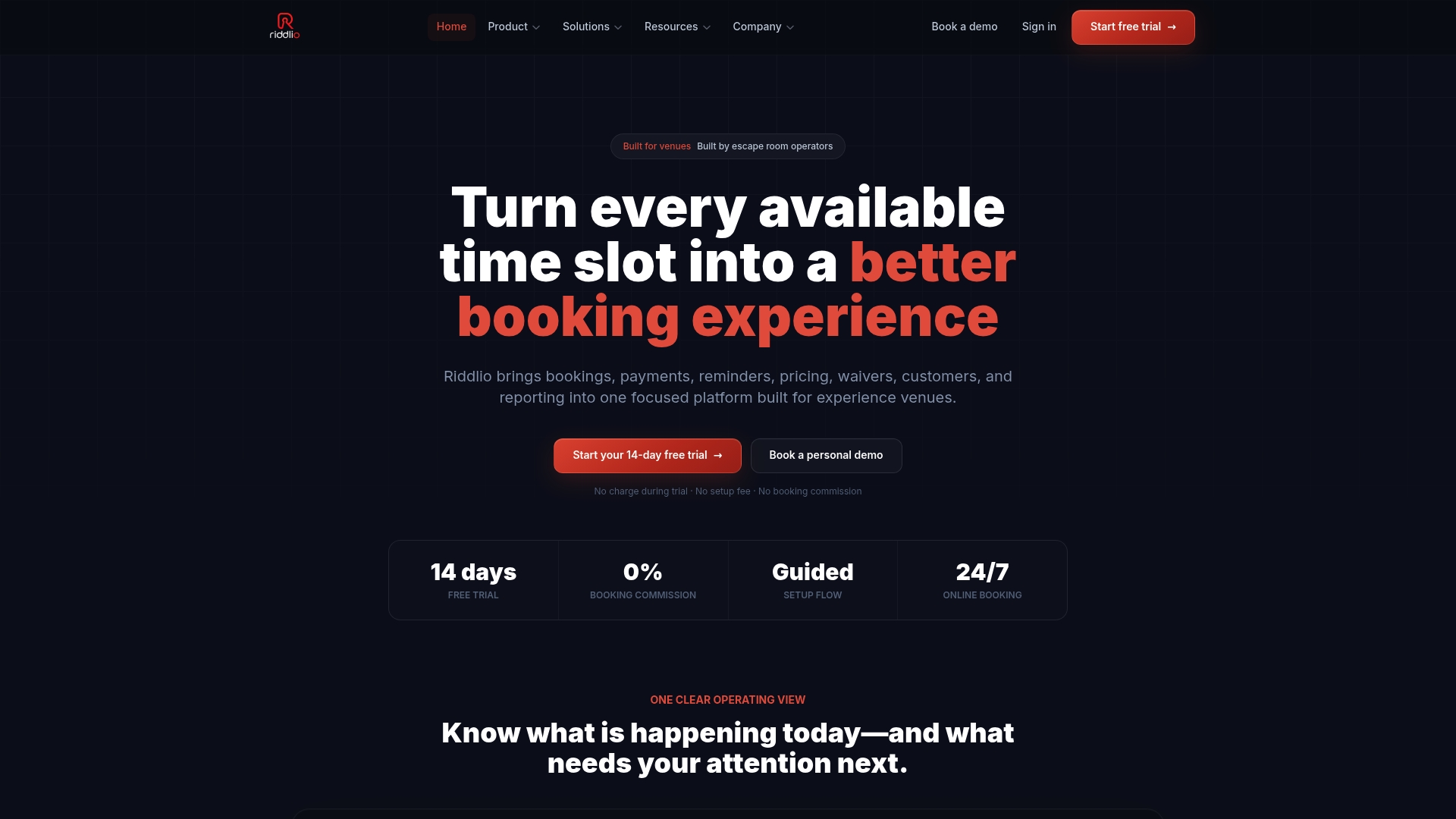
Riddlio is an online booking and business management platform built for escape room venues. It brings bookings, availability, payments, customer communications and reporting into one place, and its calendar sync is part of the product. Its escape-room workflows are designed to help you manage player numbers, room availability and group bookings, which are the things a generic calendar cannot represent.
You can see how the online booking calendar for escape rooms works, or look at the escape room booking system page for the full picture. Plans are published on the pricing page: Starter is $29 per month, Pro is $79 per month and Unlimited is $199 per month, and Enterprise has no published price.
If no-shows are part of the same problem, automated reminders help players confirm or rethink their plans before the slot goes empty: see automated SMS reminders for escape room bookings.
FAQ
Why does my calendar say conflict?
It means two entries overlap, or the same entry was changed in two places before a sync ran. Overlaps are resolved by moving one entry. A true sync conflict is resolved by choosing which version is correct and letting the next sync carry it across.
How do I fix a calendar that is not syncing?
Start with the basics: check your internet connection, update the app and confirm the calendar is set to be visible. Google’s help page for the Android Calendar app lists the common fixes. For a booking tool, then check that the connection is active, that the right calendars are ticked and that the entry is marked Busy.
Why was a booking accepted when my calendar showed Busy?
The usual reasons are that the calendar was not selected for conflict checking, the entry was marked Free, the date was outside the sync window, or the page had been open since before the entry was added. Work through them in that order.
Should I use two-way sync?
Use it only where you need changes to flow both ways, and only with a clear rule for who wins. If your calendar is there so staff can see bookings, one-way from the booking system is simpler and cannot produce a sync conflict.
Sources
- Check your availability across calendars, Google Calendar Help
- Understanding Sync and Troubleshooting, SuiteCRM documentation
- Conflict Resolution, Calendar Sync Glossary
Recommended
- Calendar Sync Troubleshooting: Fix Missing and Delayed Bookings
- Stop up to 24 Hour Sync Delays in Apple Calendar for Escape Rooms
- Outlook Calendar Sync for Escape Room Operators
- Prevent Double Bookings at Activity Venues in One Afternoon