Apple Pay is accepted across most major booking platforms today, from hotel sites to car rental checkouts. Pay-at-property rates and third-party payment processing generally miss out on the higher rate entirely.
TL;DR:
- Using Apple Pay for bookings often qualifies for 3% Daily Cash when paying in advance through partner links or flagged listings.
- Payment failures are typically caused by outdated devices, inactive cards, or booking rates structured as pay at property, not technical issues.
- Booking sites must enable Web Apple Pay explicitly; invisible or poorly placed buttons reduce usage and conversion rates.
- Apple Pay provides enhanced security through tokenisation and biometric authentication, simplifying dispute processes and fraud prevention.
- Supporting platforms like Stripe and Square make it easier for venues to adopt Apple Pay and improve the checkout experience with integrated ticket delivery.
Table of Contents
- How to use Apple Pay for bookings, step by step
- How Apple Card Daily Cash works on travel bookings
- Why Apple Pay is considered secure for booking payments
- Which booking platforms and processors support Apple Pay?
- What to do when Apple Pay doesn’t work at checkout
- Smart habits for travellers using Apple Pay to book
- Why checkout design decides whether Apple Pay earns its keep
- A booking platform that already speaks Apple Pay
- Sources
How to use Apple Pay for bookings, step by step
Booking sites that support Apple Pay usually flag it well before checkout. Booking is a good example of what that badge looks like in practice. On other sites, the signal is quieter: just the standard Apple Pay logo next to Visa and Mastercard icons at checkout.
The actual payment flow differs slightly depending on whether you’re on the web or inside an app.
Booking on the web (Safari):
- Fill in your booking details as normal (dates, room type, extras) and proceed to payment.
- Select the Apple Pay button instead of entering card details manually.
- A payment sheet pops up on your Mac or iPhone showing the merchant name and total amount. Check it matches the booking.
- Confirm the shipping/billing contact if asked (some booking sites skip this for digital-only purchases).
- Authenticate with Face ID, Touch ID, or your device passcode. On a Mac without Touch ID, you’ll confirm via a paired iPhone or Apple Watch.
- The booking confirms instantly, and you’ll get an email receipt from the merchant, separate from anything Apple sends you.
Booking inside an iOS app:
- Choose your dates, room, or rental car inside the app and tap through to payment.
- Tap Apple Pay where offered as a payment method.
- Review the payment sheet, which shows the exact amount the merchant is charging.
- Double-click the side button (or authenticate with Face ID/Touch ID) to confirm.
- On Apple Watch, a double-click of the side button does the same job.
Here’s where rewards get specific. Not every rate type qualifies. “Pay now” or “pay part now” rates, where Apple Card is charged at the time of booking, are eligible for Daily Cash. “Pay at property” rates, where the hotel or rental company charges you later, generally are not, because Apple Card with Apple Pay isn’t the payment method actually processing the transaction at that point. Daily Cash earned on eligible purchases shows up in your Wallet app, usually the next day, and it’s worth screenshotting your booking confirmation regardless of whether Daily Cash lands as expected.
Pro Tip: If a hotel or rental site shows two rates side by side, one refundable “pay at property” and one non-refundable “pay now,” check whether the small print mentions Apple Card benefits before assuming the cheaper non-refundable rate is also the rewards-eligible one. They usually align, but not always.
How Apple Card Daily Cash works on travel bookings
The Daily Cash rate you earn depends entirely on how and where you pay, not just that you used Apple Pay. Apple’s own guidance on 3% Daily Cash sets out the core rule clearly: you get 3% when you use Apple Card with Apple Pay on eligible stays and car rentals, provided you’re paying an eligible rate type in advance, and frequently only when you book through a specific partner link or a badged listing on the merchant’s site.
Drop any one of those conditions and the rate falls.
- 3% Daily Cash: Apple Card + Apple Pay, eligible pay-in-advance rate, often via a partner link or badge (Booking.com is a named partner with its own dedicated page).
- 2% Daily Cash: Apple Pay used with Apple Card at merchants outside the specific partner program, or where the rate type doesn’t meet the pay-in-advance requirement.
- 1% or no Daily Cash: paying with a different card, or paying a merchant directly at pickup/check-in rather than through Apple Pay at booking.
Booking.com’s own Apple Card partner terms spell out several exclusions that trip people up. Car rentals carry their own wrinkle too: many rental companies place an authorisation hold on the card at pickup and only charge the final amount later, sometimes on a different card if you hand over a different one at the counter.
On the general Daily Cash structure, Apple Card’s product page confirms the baseline: 2% back on Apple Pay purchases generally, 3% on Apple purchases directly and at select partner merchants.
Timing varies by fulfilment path. Daily Cash from Apple Pay purchases typically lands in your Wallet the next day. Partner-specific travel credits, where they exist, can take longer, and Booking.com’s page notes its own timeframes for when Travel Credits post after a qualifying stay.
Why Apple Pay is considered secure for booking payments
Apple Pay’s security model rests on two mechanics working together, and neither depends on you doing anything extra once it’s set up.
The first is tokenisation. When you add a card to Apple Wallet, Apple Pay generates a unique device account number, a token, that stands in for your actual card number. Stripe’s documentation on Apple Pay explains that merchants never see or store your real card number; they receive the token and a transaction-specific cryptogram instead. If a booking site’s database were ever breached, there’s no card number sitting in it to steal in the first place.
The second is biometric authentication. Every Apple Pay transaction requires Face ID, Touch ID, a device passcode, or a double-click confirmation on Apple Watch. That pairing of a tokenised card number with a biometric check is what payment industry analysis around Apple Pay consistently points to as its core fraud-reduction mechanism, since a stolen phone alone can’t authorise a payment.
What this means practically for booking payments:
- A cancelled or fraudulent-looking hotel booking is easier to dispute when you can show your bank the exact device and biometric authentication used, not just a card number that could have been copied anywhere.
- Refunds on Apple Pay transactions generally route back to the same underlying card and follow the merchant’s normal refund timeline, since Apple Pay is a payment method layered on your card, not a separate account holding funds.
- Holds and pre-authorisations (common with car rentals and some hotels) behave the same as they would on a physical card, they just show up against the token rather than the card number.
Keep your booking confirmation email and, where the trip is expensive enough to matter, consider travel insurance separately. Tokenisation stops your card number leaking, but it doesn’t insure you against a cancelled flight or a venue closing before your visit.
Which booking platforms and processors support Apple Pay?
Acceptance comes down to whether the booking platform’s payment processor has switched Web Apple Pay on, and whether the site’s developers have actually put the button somewhere visible.
Stripe and Square are among the processors that support Apple Pay integration for merchants, including booking and reservation platforms. Stripe’s own resources note that merchants aren’t charged anything extra by Apple to accept Apple Pay, but they still pay standard processing fees through whichever gateway they use, and they need to complete domain verification and token handling correctly for the button to appear at all.
That technical requirement explains a common frustration: a site can use a processor that supports Apple Pay perfectly well and still not show the option, simply because nobody enabled it in the checkout configuration. If you don’t see Apple Pay on a booking page, that’s usually a merchant-side setup gap rather than anything wrong with your device.
- Web checkout: requires the merchant to enable Web Apple Pay specifically, separate from in-app support, and to place the button early in the payment flow rather than buried behind other options.
- In-app checkout: iOS apps request Apple Pay support through Apple’s own frameworks, generally a simpler integration than the web version.
- Partner badges: a “3% Daily Cash with Apple Card” badge, like the one on Booking.com’s dedicated page, signals a formal partnership arrangement, not just basic Apple Pay acceptance.
- Region and IP factors: some booking sites detect your location and only display Apple Pay (or partner offers) for markets where the arrangement applies, so the same site can look different depending on where you’re browsing from.
Button placement isn’t a cosmetic detail either. Stripe’s guidance on Apple Pay integration notes that exposing the button early in checkout, rather than as a final, secondary option, measurably lifts how often shoppers use it. A booking engine that tucks Apple Pay away at the bottom of a long payment form is leaving conversions, and customer convenience, on the table.
What to do when Apple Pay doesn’t work at checkout
Most Apple Pay failures at booking checkout trace back to one of a handful of causes, and nearly all of them are fixable in under a minute.
- Check your device and OS version. Apple Pay requires a reasonably current iOS, iPadOS, macOS, or watchOS release, and an eligible device. If Apple Pay works fine on other sites, this usually isn’t the issue, but an outdated OS is worth ruling out first.
- Confirm the card is active in Wallet. Occasionally a card gets suspended or needs re-verification after a bank security flag; open Wallet and check the card’s status before assuming the booking site is broken.
- Verify the rate type. If you’re expecting Daily Cash and it doesn’t show up, check whether you booked a “pay at property” rate. These process the actual charge later, through the property’s own terminal, which typically excludes them from Apple Card’s travel rewards tier.
- Watch for authorisation holds on rentals. Car rental and some hotel bookings place a hold at pickup or check-in separate from the original booking charge. If the final payment runs on a different card presented at the counter, that transaction, not your original Apple Pay booking, is what determines any rewards.
- Try an alternate payment method if Apple Pay genuinely won’t load. Some older browser versions or in-app webviews don’t support the Apple Pay JS API properly. Switching to Safari directly, or the merchant’s native app, often resolves it.
Pro Tip: If a rental car company or hotel takes a second charge you weren’t expecting, don’t assume it’s an error before checking your original booking terms. Screenshot both the booking confirmation and the front-desk receipt. If a dispute follows, you’ll want proof of exactly which payment method settled the final amount.
Smart habits for travellers using Apple Pay to book
A few small habits separate travellers who consistently capture Daily Cash from those who miss it without realising why.
- Look for the partner badge before you book, and use the specific link the badge points to, not just any page on the merchant’s site, since the 3% tier is often tied to that exact entry point.
- Choose the pay-in-advance rate over pay-at-property whenever the price difference is small. If Daily Cash matters to you, only the former typically qualifies.
- Save your payment confirmation and Wallet transaction screenshot together. If a dispute or refund comes up weeks later, having proof of the payment method beats trying to reconstruct it from memory.
- At check-in or vehicle pickup, ask directly whether they’ll process another charge and on which card. This single question avoids the most common reason Daily Cash doesn’t post as expected on rentals.
- Don’t assume every “digital wallet” badge on a booking site means Apple Pay specifically. Some sites bundle Google Pay and Apple Pay support under one generic icon, and only checkout will confirm which one actually loads for you.
Why checkout design decides whether Apple Pay earns its keep
Most of the friction around Apple Pay for bookings isn’t a payments problem, it’s a design problem. A booking platform can have Apple Pay fully wired up through its processor and still bury the button so far down the checkout flow that half its customers never see it. That’s not a hypothetical; it’s the exact pattern Stripe flags in its own integration guidance, and it’s the single biggest lever venues have that they routinely ignore.
The conventional wisdom treats Apple Pay as a nice-to-have add-on, something you enable once and forget about. That’s backwards. For any business selling timed, prepaid experiences (which is exactly what an escape room booking is), the payment button placement is part of the conversion funnel, not an afterthought bolted onto the end of it. A customer who hesitates at a clunky payment form is a customer who abandons the booking entirely, and abandoned bookings cost more than any processing fee ever will.
There’s also a guest experience angle most platforms miss entirely: what happens after payment. Apple Wallet ticket delivery, where a booking confirmation lands as a scannable pass rather than a forgettable email, closes the loop between “I paid” and “I’m confident I’ll get in.” Riddlio builds around that principle, connecting to Stripe, Square, and PayPal so venues can offer Apple Pay without a custom integration project, and supporting Apple Wallet ticket delivery so the confirmation itself becomes part of the check-in experience rather than a separate hassle.
— Iosif Beraru
A booking platform that already speaks Apple Pay
If you run an escape room and you’re tired of choosing between “accept every payment method” and “keep the checkout simple,” that’s the wrong trade-off to be making. Some booking platforms handle both by connecting directly to Stripe, Square, and PayPal, so booking pages can show Apple Pay as a standard checkout option without requiring integration code.
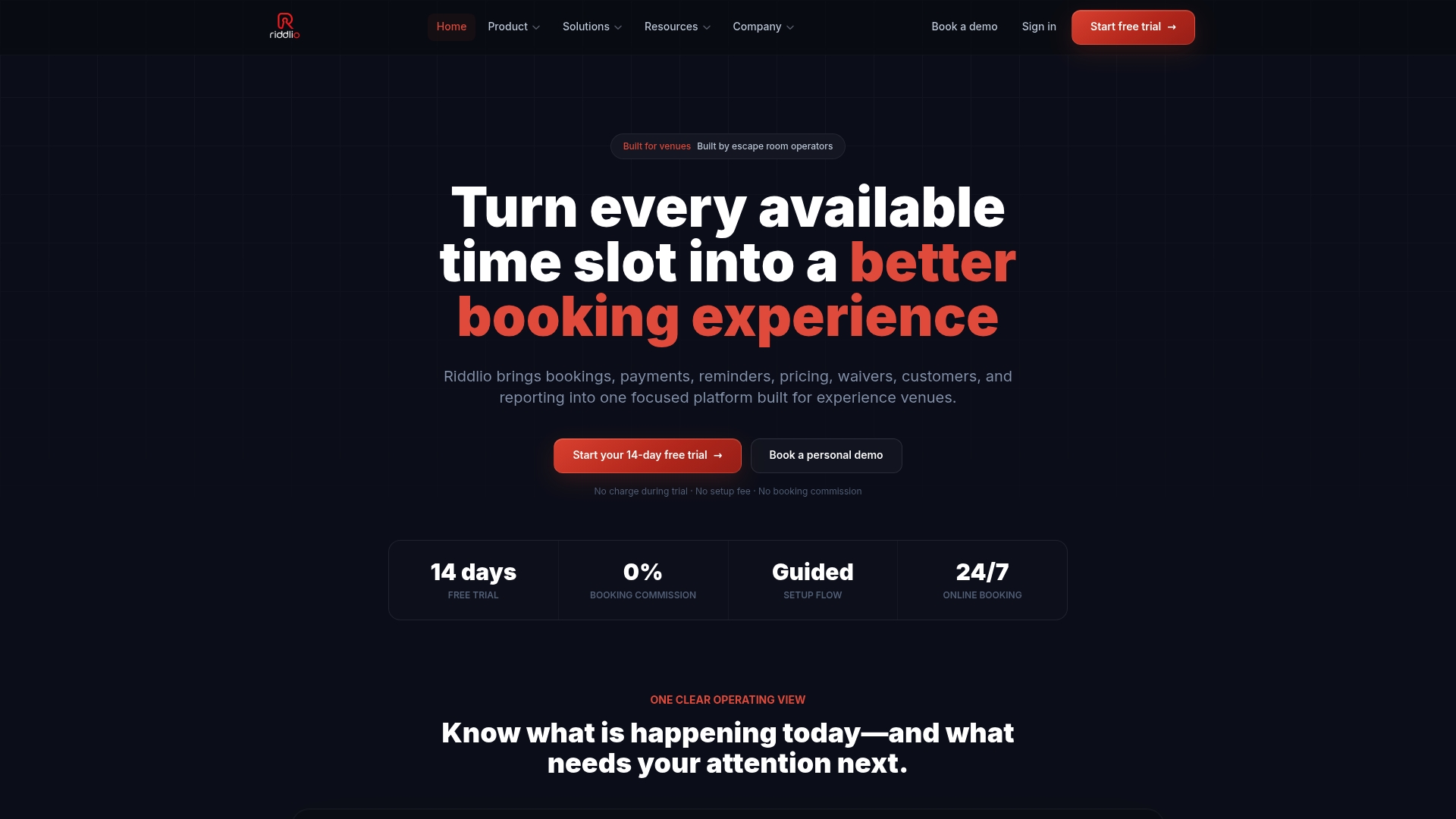
Guests get the same fast, biometric-authenticated checkout they use everywhere else, and you get payment processing that ties straight back into your booking calendar, no reconciling separate systems at the end of the week. Other platforms support Apple Wallet ticket delivery, so a confirmed booking becomes a pass guests can pull up at the door instead of hunting through email on their phone while a front desk waits. Pair that with dynamic pricing for peak slots and you’ve got a checkout flow built for how people actually pay in 2026, not how they paid a decade ago.
If your current booking setup still routes everyone through a card-number entry form, take a look at Riddlio’s online booking calendar and see what a modern, Apple Pay-ready checkout could do for your no-show rate.